
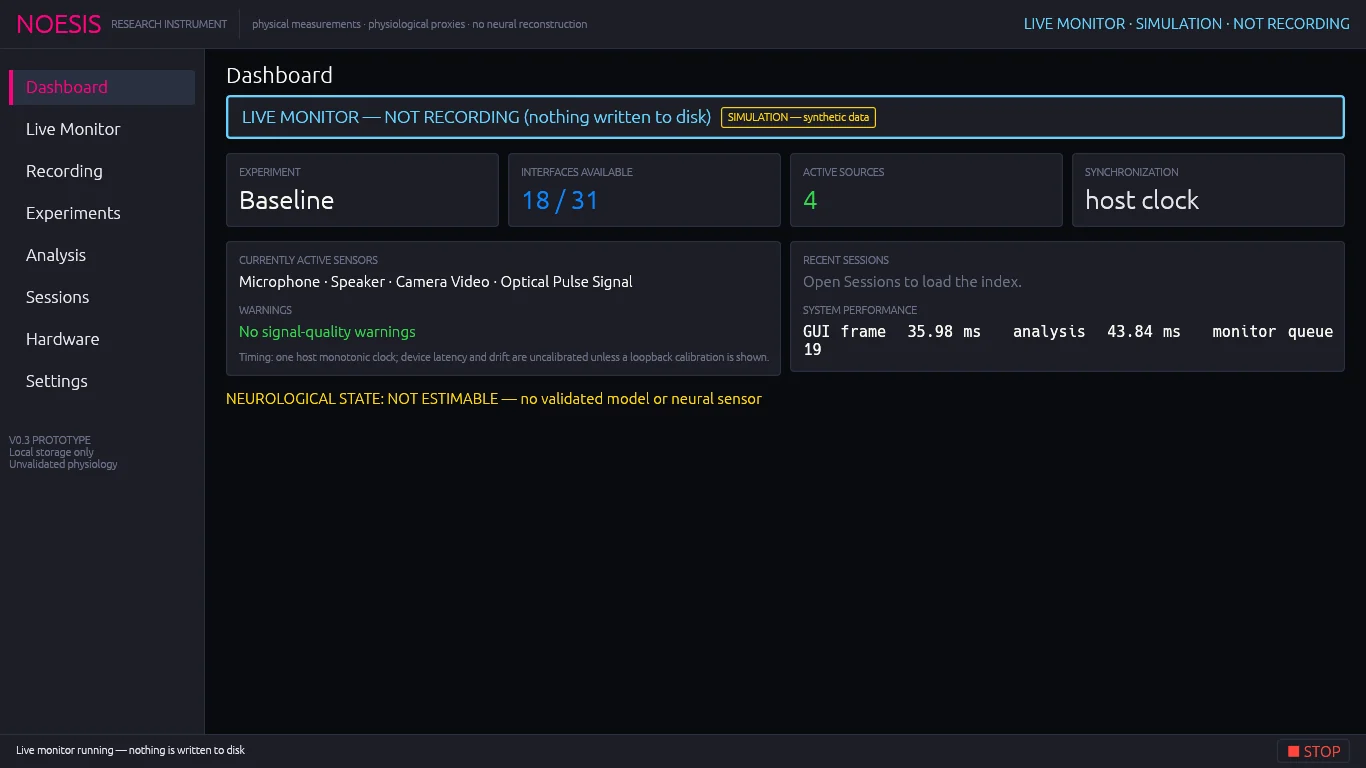
Window layout#
| Area | Contents |
|---|---|
| Header | The NOESIS wordmark and, on the right, the current mode in a colour that matches the run state (see below). |
| Navigation rail | Eight workspaces: Dashboard, Live Monitor, Recording, Experiments, Analysis, Sessions, Hardware, Settings. The active page is marked with a magenta bar. The page you leave open is restored next launch. |
| Workspace | The selected page. It scrolls vertically; cards group related controls. |
| Footer | The latest status message (errors, “Session saved”, device problems, scan results) and the ■ STOP button. |
Run states and modes#
The header mode and the coloured banner at the top of Dashboard, Live Monitor, Recording and Experiments always tell you whether anything is being written to disk.
| State | Header mode | Meaning |
|---|---|---|
| IDLE | IDLE | Nothing is acquired. |
| MONITOR | LIVE MONITOR · NOT RECORDING (or · SIMULATION ·) | Sources are acquired and displayed; nothing is written to disk and no stimulus is played. |
| RECORDING | LIVE RECORDING / SIMULATION RECORDING | A session is being written. The banner shows elapsed seconds. |
| PAUSED | banner: RECORDING PAUSED | Acquisition continues; source records are not written until you resume. |
| RECORDED | RECORDED · REAL DATA / RECORDED · SIMULATION | A session just finished and was saved. |
| REPLAY | REPLAY · REAL RECORDING / REPLAY · SIMULATION | A saved session is being re-analyzed from disk. |
When Simulation is enabled, a yellow SIMULATION — synthetic data pill appears in the banner.
The STOP control#
■ STOP in the footer is visible on every page. It ends a recording or live monitor and silences audio output immediately. During a full-window visual stimulus, press Esc to stop.
Status words#
Every device, interface and source carries one of these statuses:
| Status | Meaning |
|---|---|
| ACTIVE | Streaming data in the current monitor, recording or replay. |
| AVAILABLE | Present and accessible. |
| EXPERIMENTAL | Accessible and recordable; the signal is classed as experimental (for example Wi-Fi signal strength). |
| PERMISSION_DENIED | Present, but your user account may not read it. See Optional permissions. |
| UNAVAILABLE | Not present on this machine. |
| UNSUPPORTED | No backend exists for it on this platform. |
| SIMULATED | Generated by NOESIS for testing. |
Common controls#
Source filter bar Live Monitor, Recording, Experiments
Above every source list:
- Search sources — filters by source name or device card name as you type.
- Filter chips: All, Active (streaming now), Recording (ticked for recording), Available, Experimental, System (system, power and storage telemetry), Biological / Physical (everything else).
- Show Technical Details — adds raw identifiers (source key, device ID, backend, driver detail, units, provenance class) under each source.
Expandable cards and settings + / −
Cards and source rows with + or + Settings expand in place; − collapses them. Expanded state is saved with your configuration.
Provenance badges DIRECT · DERIVED · PHYSIOLOGICAL · EXPERIMENTAL
Grey pills under sources state how each value is produced, for example DIRECT MEASUREMENT, DERIVED MEASUREMENT or a physiological-measurement class. The same classification is written into every recorded frame and is shown by NOESISReader as MEASURED / DERIVED / INFERRED / ABSTRACT MAPPING.
Pages at a glance#
Dashboard
Experiment, interface count, active sensors, warnings, recent sessions.
LiveLive Monitor
Watch every source live without writing anything.
CaptureRecording
Start, pause and stop sessions; choose sources.
ProtocolsExperiments
Protocols, trial timing, stimuli and requirements.
ResultsAnalysis
Spectra, correlation, transfer, loopback timing, reaction times.
ArchiveSessions
Index, replay and re-analysis of recordings.
DevicesHardware
Capability matrix and per-class device tools.
ConsoleSettings
Technical details, storage, diagnostics, event log.