
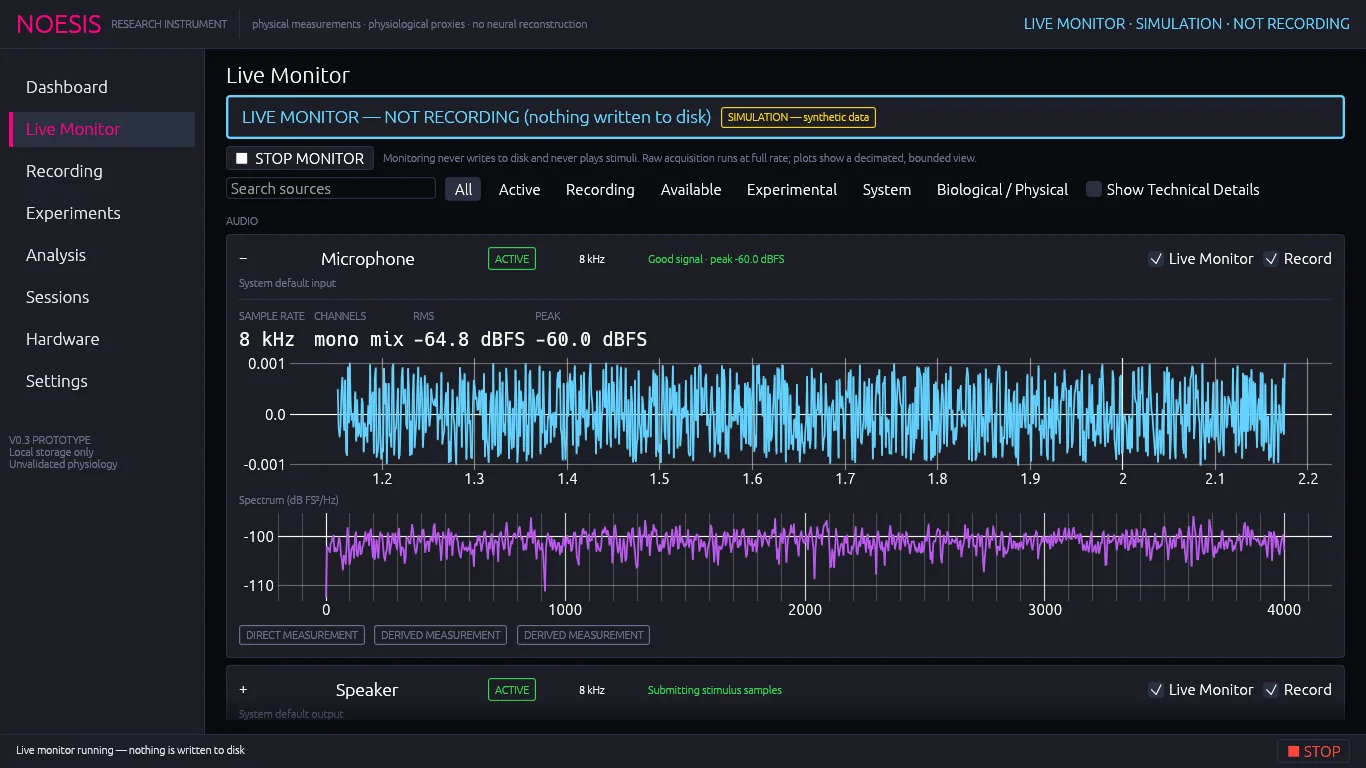
Start and stop monitoring#
Open Live Monitor.
Click START LIVE MONITOR. The banner turns cyan:
LIVE MONITOR — NOT RECORDING (nothing written to disk).Expand any card with + to see its live view.
Click ■ STOP MONITOR (or the footer ■ STOP) to end monitoring.
Starting a recording stops the monitor automatically. While a recording runs, the Live Monitor shows the recording's live data and the start button is replaced by Recording in progress.
Source cards#
Sources are grouped by category (Audio, Optical, Display, Input, Touch, Radio, Motion, System, Power, Storage, Environmental, Experimental) and then by device card. Each card header shows:
| Element | Purpose |
|---|---|
| + / − | Expand or collapse the live view. |
| Name and status | Device card name (Microphone, Camera, CPU, Wi-Fi…) and its live status pill. |
| Rate | Measured rate while streaming (the audio sample rate for audio cards), otherwise the nominal rate, or events. |
| Quality | A plain-language signal-quality note (see below). |
| Live Monitor checkbox | Show this card's sources live. Unticking keeps acquisition for recording but hides the live view. |
| Record checkbox | Include every source on this card in the next recording. Mirrors the Recording page. |
What each live view shows#
Microphone Audio
Sample rate, channel mode (mono mix), RMS and peak level in dBFS, a waveform plot and a spectrum plot (dB FS²/Hz). “silent (no signal)” appears when every sample is zero.
Camera Optical
A live preview with the optical region of interest (ROI) drawn as a magenta box, plus resolution, measured frame rate, frame count, acquisition-queue drops and, when available, the optical pulse candidate in bpm. Below it, the Optical Pulse Signal trace (ROI mean green).
Screen Display
During visual stimuli: rendered frame count, mean frame interval and late-frame count.
Touch Screen Touch
A canvas showing live contacts in the NOESIS window (each with its ID and force, or n/a) and the recorded touch trail.
Keyboard, Mouse, Game Controller, Serial, Haptic Events
Event count, event rate, the pointer position for the mouse, and the eight most recent matching events.
Telemetry cards (CPU, memory, Wi-Fi, sensors, battery, temperatures…) Scalar / vector
A table of every channel on the card with its latest value and units. Click a channel name to plot it. Vector sensors (accelerometer, gyroscope, magnetometer) plot x, y, z and magnitude.
Signal-quality notes#
| Note | Meaning |
|---|---|
| Good signal · peak −N dBFS | Microphone is receiving audio below full scale. |
| Silent — all samples zero | Input is muted or routed to the wrong device. Choose another input on the Recording page. |
| Clipping | Microphone peak reached full scale. Lower the input gain in the OS mixer. |
| Streaming · N fps / Low frame rate | Camera frame rate; below 5 fps is flagged (often dim light). |
| Constant values — sensor may be stale | A vector sensor has not changed value. |
| Stale — no data for N s | The source stopped delivering during the run. |
| Receiving · rate | Telemetry or events are arriving normally. |
| Idle — start monitoring / No data yet | Nothing has been acquired yet. |
Filter and search#
Use the filter bar above the cards: type in Search sources, pick a chip (All, Active, Recording, Available, Experimental, System, Biological / Physical) or tick Show Technical Details to show raw identifiers under each card.
Unavailable sources#
At the bottom, Not available on this machine (N) expands to list every interface with no usable source here, its status and the exact reason (for example “no driver on this machine exposes raw capacitance”).
RF and Synthesis live panels#
When an RTL-SDR survey or Synthesis is running, collapsible RF survey and Synthesis panels appear at the top of the Live Monitor. See Live RF views and Live Synthesis panel.