
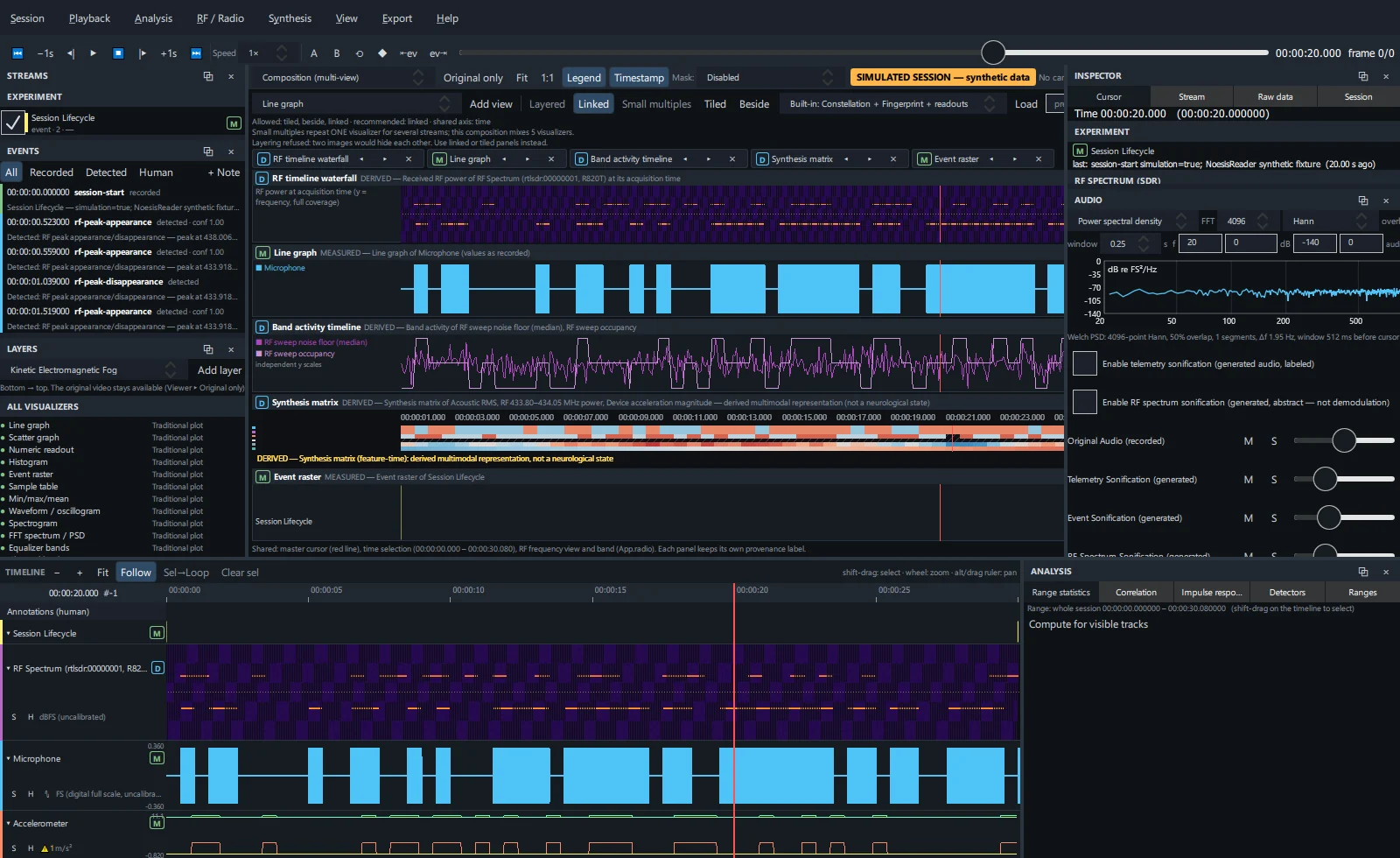
Build a composition#
Open Synthesis → Composition (multi-view), or the Composition tab of the Synthesis workspace.
Choose a visualizer in the drop-down and click Add view. Repeat for each view.
Pick a form. Buttons that are not allowed for the current views are disabled:
Form Arrangement Layered One stack; the first view is opaque at the bottom, others blend on top with their opacity. Only for views in the same coordinates. Linked Stacked vertically and sharing an axis (time or frequency). Small multiples A grid of the same kind of view. Tiled A grid of different views. Beside Side by side in one row. Read the note under the toolbar: allowed forms, the recommended one, the shared axis and the reasons for any restriction.
Arrange views#
Each view has a chip showing its class badge and name:
- ◀ / ▶ reorder; ✕ removes the view;
- in Layered mode, the slider sets the view's opacity;
- hover a chip for its provenance, any availability message and its streams.
All views share the master cursor, the time selection (or whole session) and the RF frequency view and band. Each keeps its own provenance label.
Presets#
| Built-in preset | Views |
|---|---|
| RF waterfall + traces (linked) | RF timeline waterfall, line graph, band activity timeline, Synthesis matrix, event raster |
| Constellation + Fingerprint + readouts | Sensor Constellation, Signal Fingerprint, numeric readout (tiled) |
| Video + RF / Synthesis HUD (layered) | Telemetry HUD, RF readout HUD, Synthesis feature HUD over the video |
| RF panorama family (linked by frequency) | Panorama, spectral delta, occupancy |
| Waterfall + peak tracks (layered) | RF waterfall with peak tracks on top |
- Load — choose a preset and click Load.
- Save — type a name and click Save; your presets are stored in the project.
- Clear removes every view.
Export a composition as an image with PNG of the viewer or as a video with Rendered video of the viewer. See Export.