
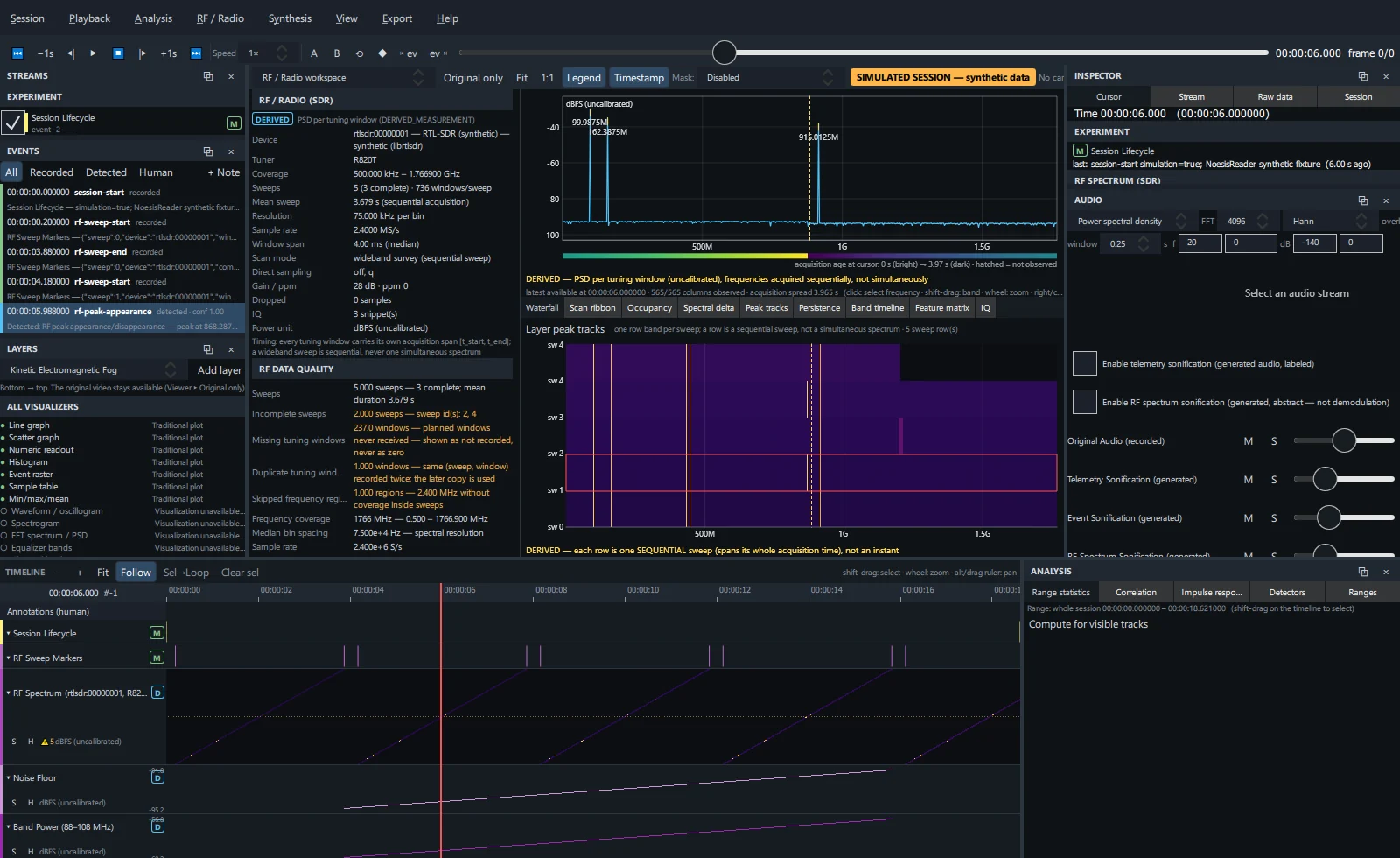
Open the workspace#
Press Ctrl+R, choose RF / Radio → RF / Radio workspace, or pick it in the viewer's view selector. Recordings without an RF survey show what is missing; Wi-Fi and Bluetooth RSSI remain available elsewhere.
Each frequency in a sweep was measured at a different time. The panorama shows the most recent window available at the cursor for each frequency, and the age strip beneath it shows when each was acquired (bright = recent, dark = old, hatched = not observed).
Panorama#
| Gesture | Action |
|---|---|
| Click | Select a frequency (drives readouts, sonification and the HUD). |
| Shift-drag | Select a band. |
| Wheel | Zoom the frequency axis around the pointer. |
| Right-drag or Ctrl-drag | Pan the frequency axis. |
| Hover | Readout: frequency, power and acquisition time of the window under the pointer. |
Peak labels mark local maxima above the noise floor plus the peak threshold.
Sidebar#
Survey summary and RF data quality Read-only
Device, tuner, coverage, sweeps (complete / total, windows per sweep), mean sweep duration, resolution, sample rate, window span, scan mode, direct-sampling modes, gain and ppm, dropped samples, IQ snippet count, power unit and the timing note. RF data quality lists sweeps, incomplete sweeps, missing and duplicate windows, skipped regions, frequency coverage and bin spacing, with warnings in amber. A stream selector appears when the session has more than one receiver.
Frequency view Span, zoom, selected frequency
- Type the view's low and high frequency (suffixes such as
433.92M,1.2G,500kare accepted). - Full span, Zoom band and log f (logarithmic frequency axis).
- Selected — type an exact frequency. The line below shows its power at the cursor and the acquisition age, or that it was not recorded.
Band Band tracks
- Shift-drag a band on the panorama (it is shown in the Band section).
- Tick the metrics to compute: integrated, max, mean, noise floor, occupancy, peaks (integrated and occupancy are ticked by default).
- Optionally type a label, then click Add band track (or RF / Radio → Add selected band as timeline track).
Each metric becomes a DERIVED timeline track with one value per sweep, timed at the midpoint of the band's acquisition span. Band tracks are ordinary streams: use them in Correlation, Impulse response, Constellation, Lens, Fingerprint and compositions. Click a band in the list to reselect it; ✕ removes it. Clear band clears the selection.
Sweep Follow cursor or fixed
- Follow cursor — views show the latest data at the cursor.
- Selected sweep — views show one sweep; ◀ / ▶ (or RF / Radio → Previous / Next sweep) step through sweeps.
- The sweep list jumps to any sweep. In fixed mode a summary shows its start, end, duration, windows received / planned, missing windows and completeness.
Baseline For delta views and normalization
| Baseline | Built from |
|---|---|
| No baseline | — |
| First complete sweep | The first sweep with every window. |
| Mean of sweeps | All sweeps in the selection, or the whole session. |
| Rolling | The N sweeps before the cursor (N 1–200). |
| Selected time range | Sweeps within the timeline selection. |
| Saved: name | A baseline saved earlier with Save (stored in the project). |
The line below describes the active baseline.
Display Amplitude, delta, waterfall, colour
| Setting | Options |
|---|---|
| Amplitude | dB, linear power, log10 power |
| Delta | difference (dB), ratio (linear), z-score (needs ≥ 3 baseline sweeps) |
| Waterfall | absolute power, minus baseline, minus row median |
| Rows | one row per sweep, or real acquisition time |
| Colour | inferno, viridis, gray |
| dB range | colour scale minimum and maximum |
| peak threshold dB | 3–40: peak labels, peak tracks |
| occupancy margin dB | 1–30: occupancy above the noise floor |
Peak / carrier tracks DERIVED table
Up to 40 tracked peaks: frequency, mean power, persistence, drift (Hz/s) and ↑ appeared / ↓ disappeared marks. Click a row to select its frequency and seek to its first appearance.
Visualizer compatibility
Every visualizer marked ● compatible with the RF stream or ○ with the reason it is not.
View tabs#
Waterfall Tab 1
Frequency against sweep (or real acquisition time) with power as colour. Click to seek to that row's time and select that frequency. Layer peak tracks draws the peak tracks in the waterfall's own coordinates.
Scan ribbon Tab 2
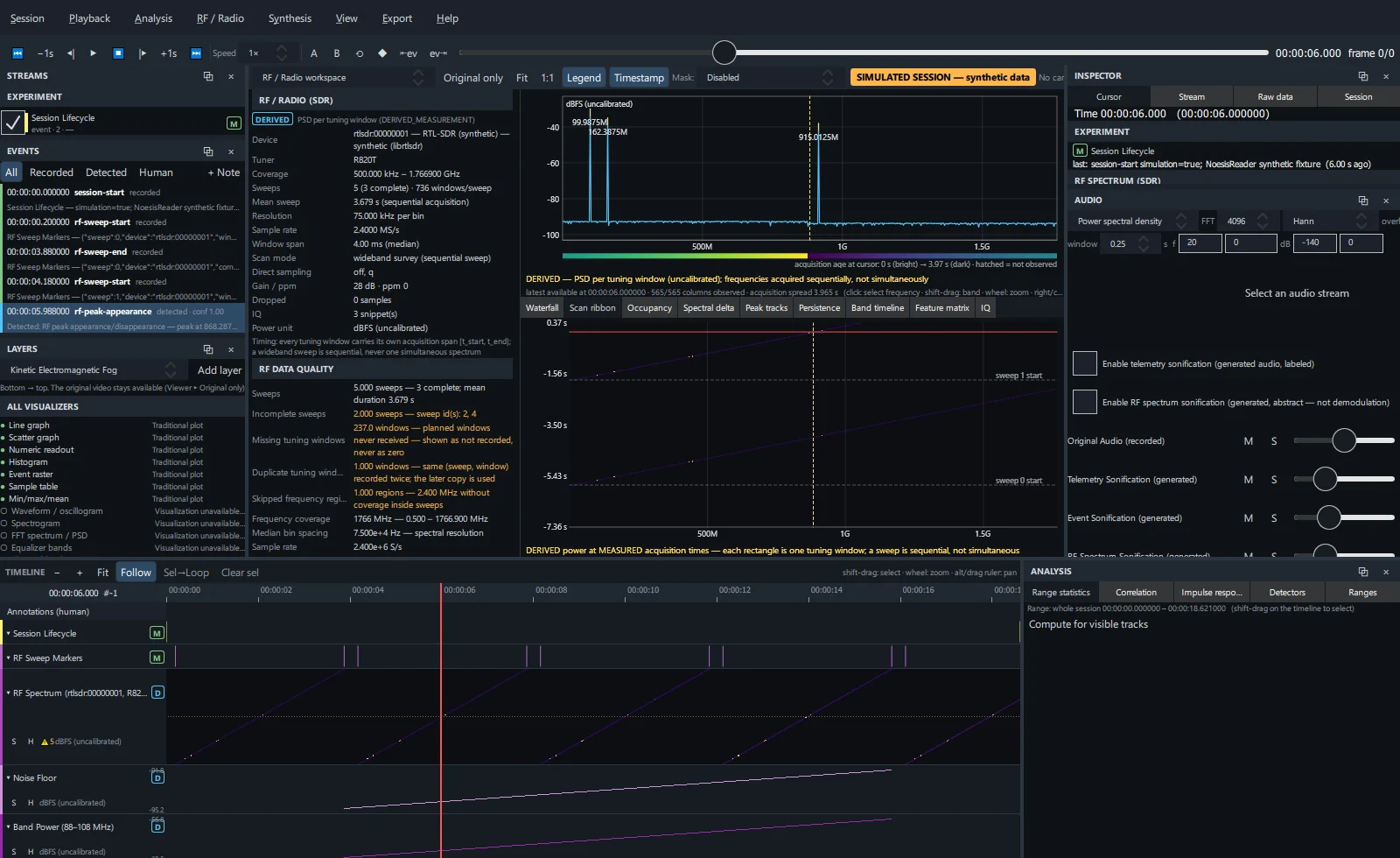
Frequency against actual acquisition time: each tuning window is its own rectangle, so sweep progression, gaps and retune timing are visible.
Occupancy Tab 3
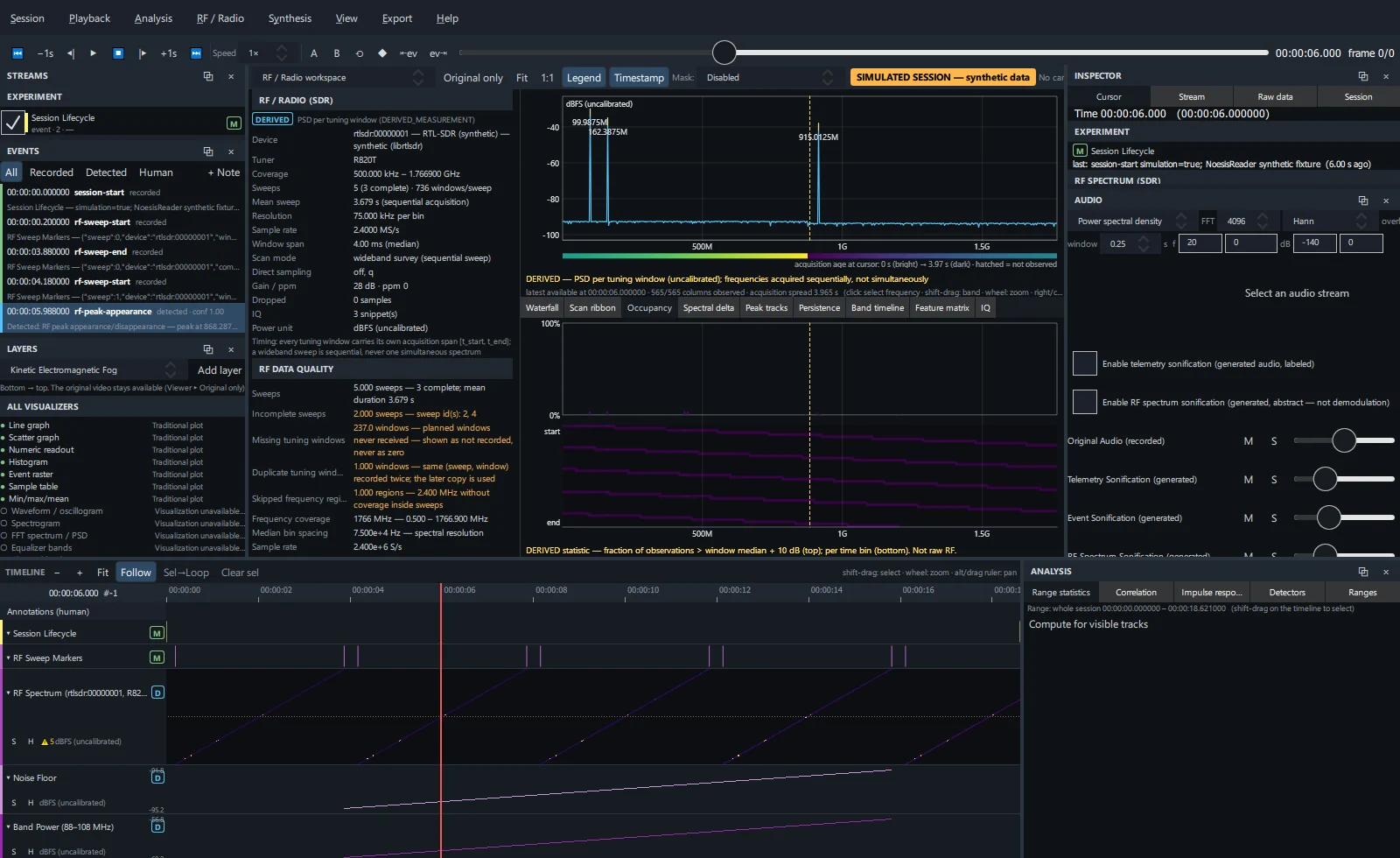
How often each frequency exceeds the window noise floor plus the occupancy margin.
Spectral delta Tab 4
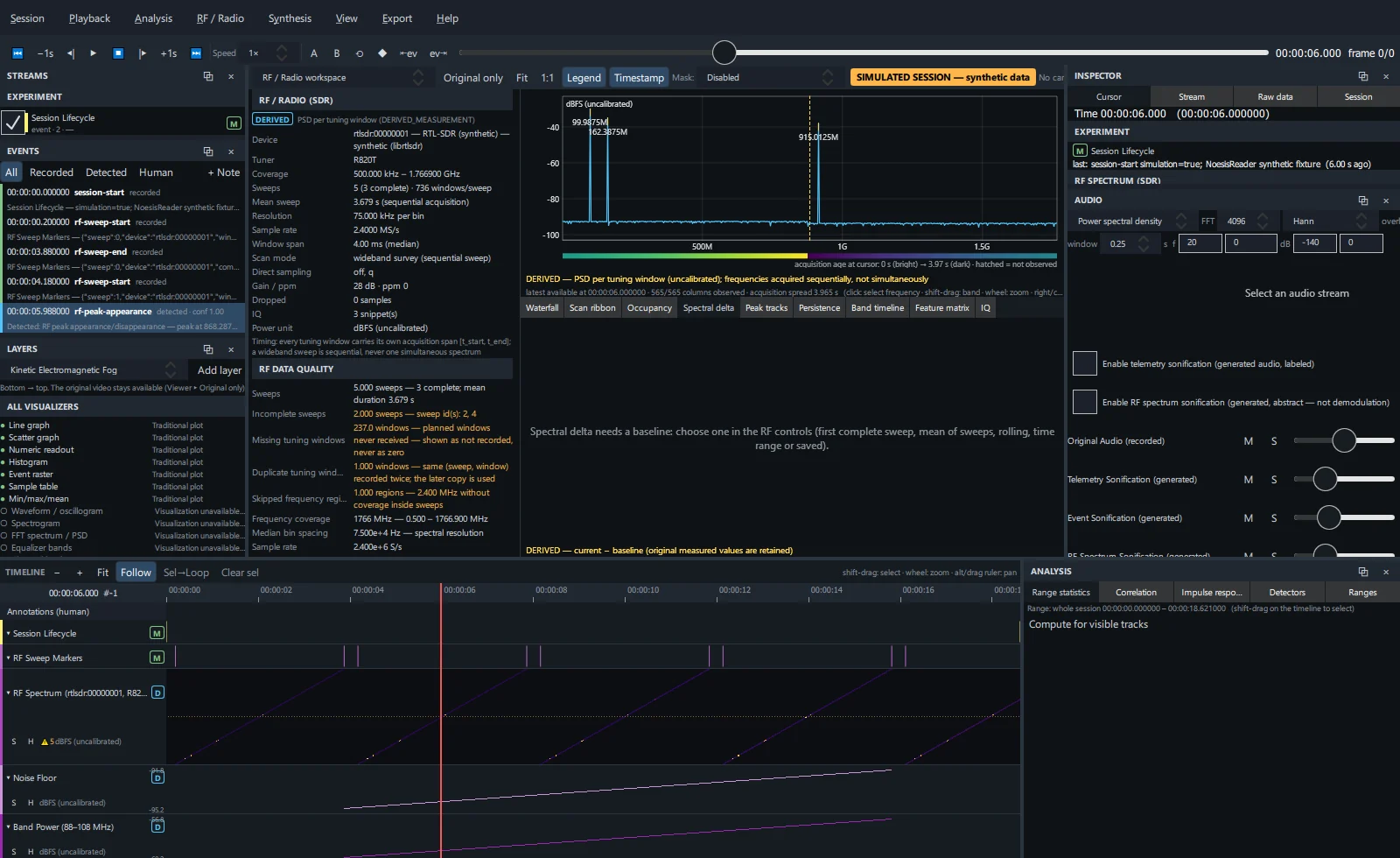
The current spectrum against the chosen baseline as difference, ratio or z-score. Original values are kept.
Peak tracks Tab 5
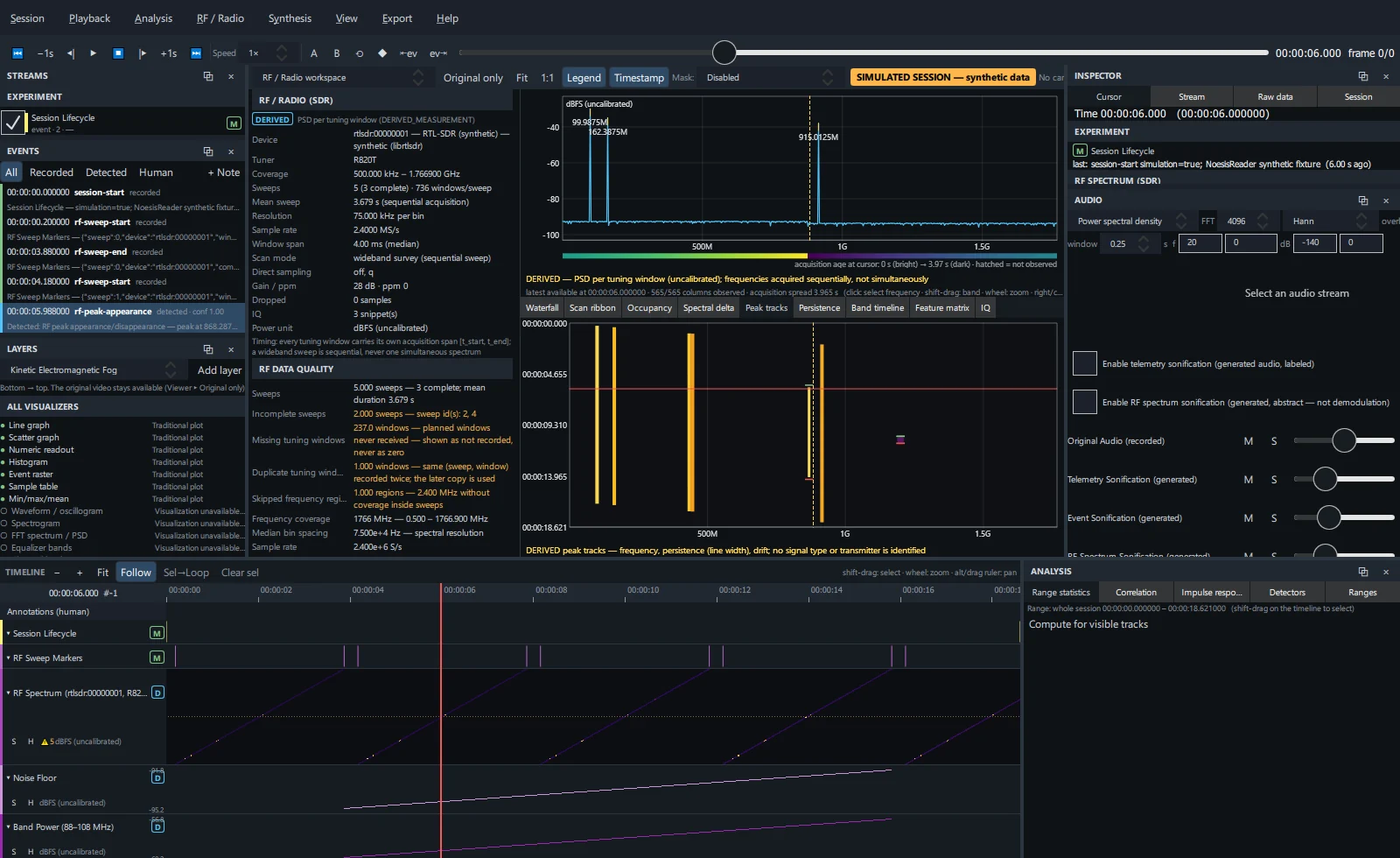
Significant peaks tracked across sweeps: frequency, power, persistence (line width), drift, appearance and disappearance. Click to select a frequency.
Persistence Tab 6
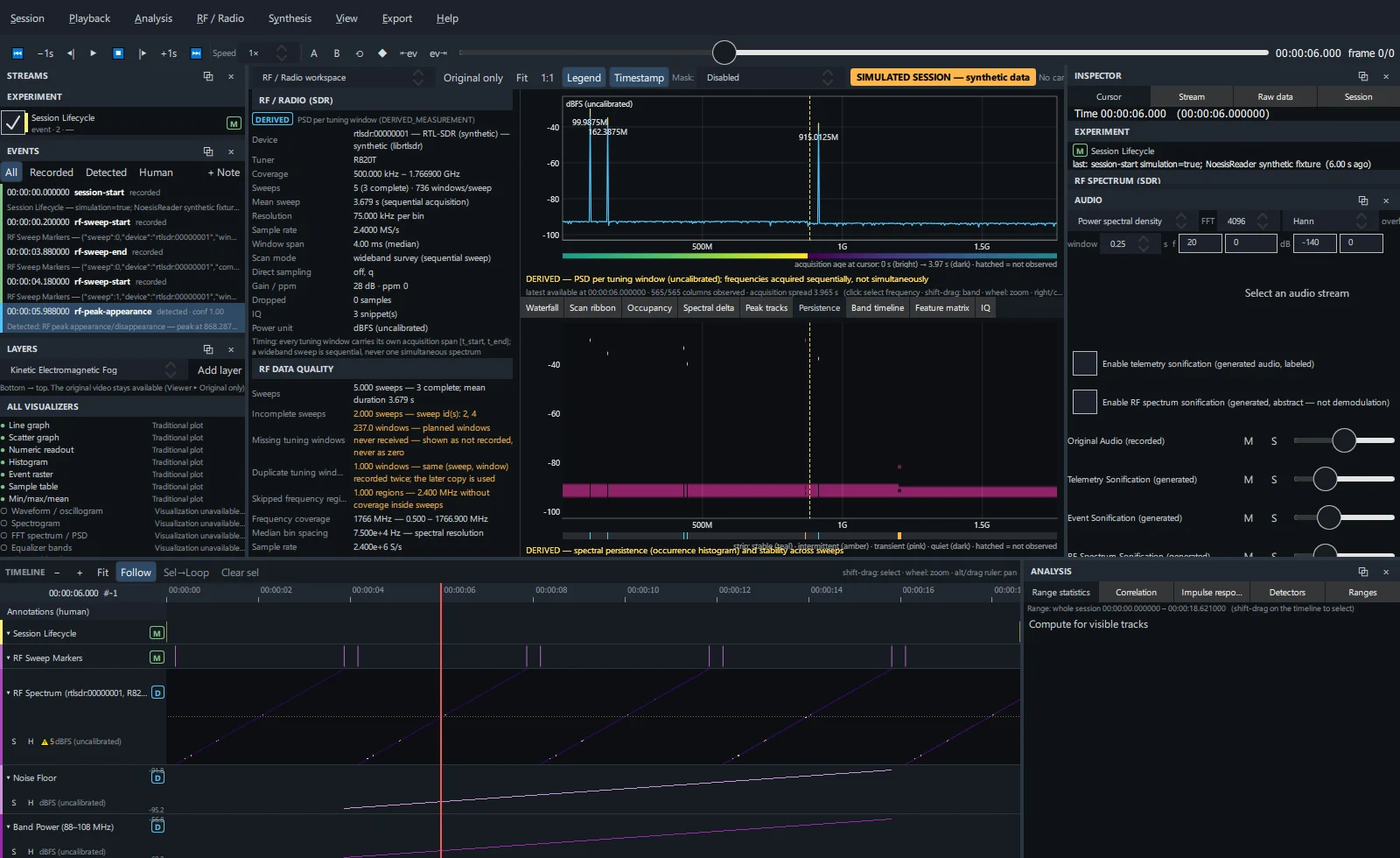
How often each power level occurred per frequency, with a class strip: S stable, I intermittent, T transient.
Band timeline Tab 7
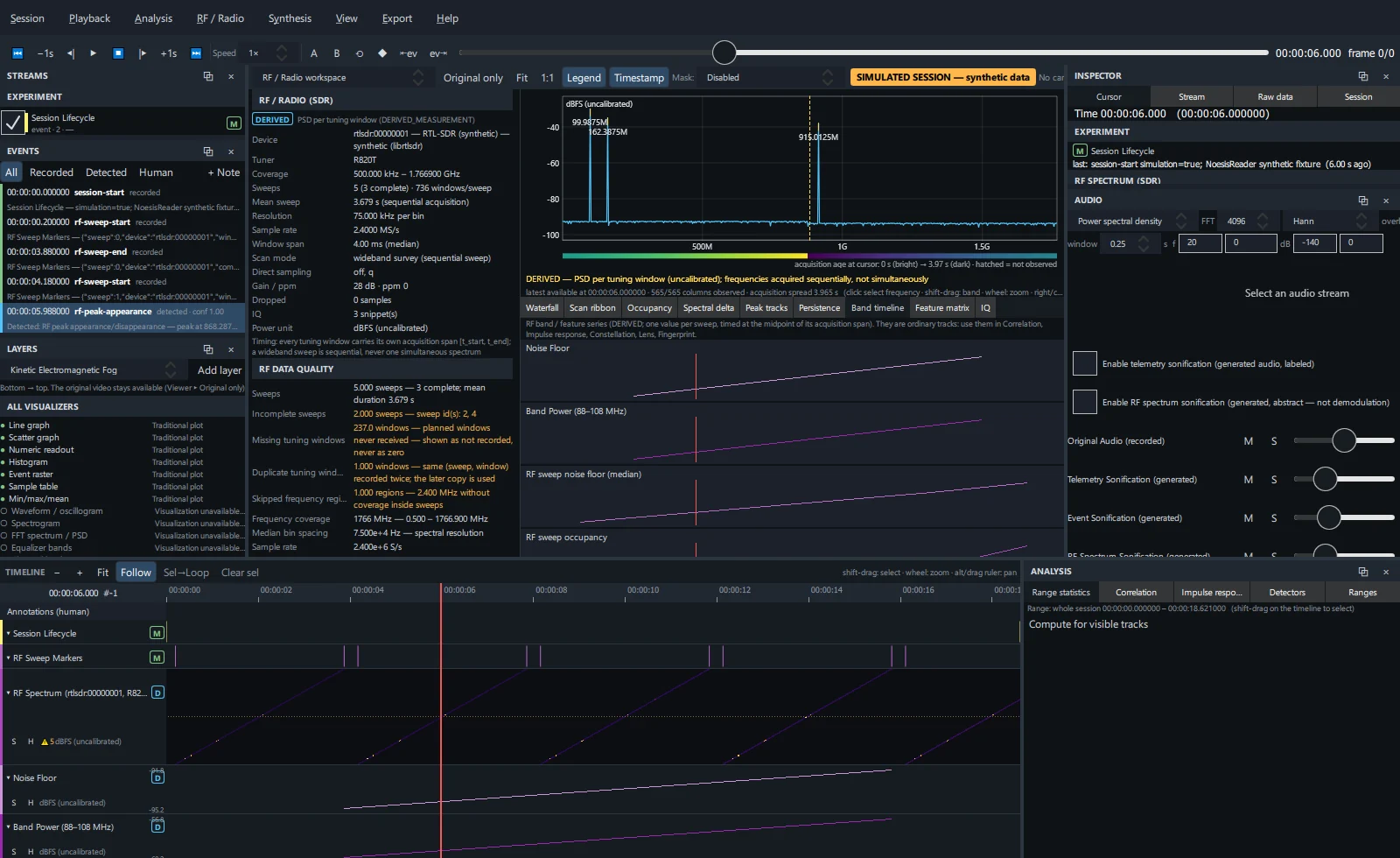
Every RF band track and RF feature series as a small time-series plot with the cursor. Click a name to select the stream.
Feature matrix Tab 8
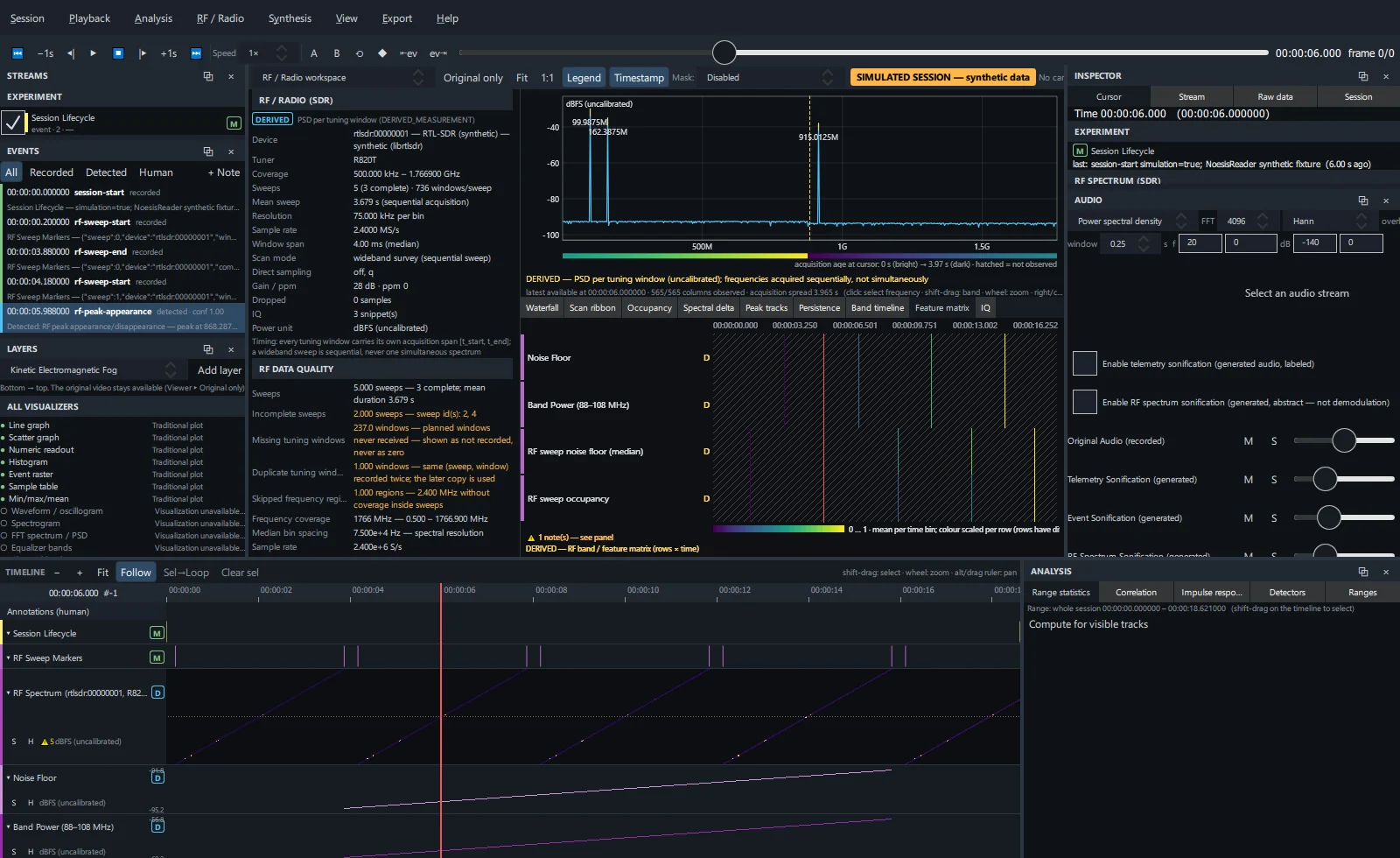
Bands and RF features (rows) against time (columns) to compare many bands at once. Empty cells were not recorded.
IQ Tab 9 — when IQ snippets exist
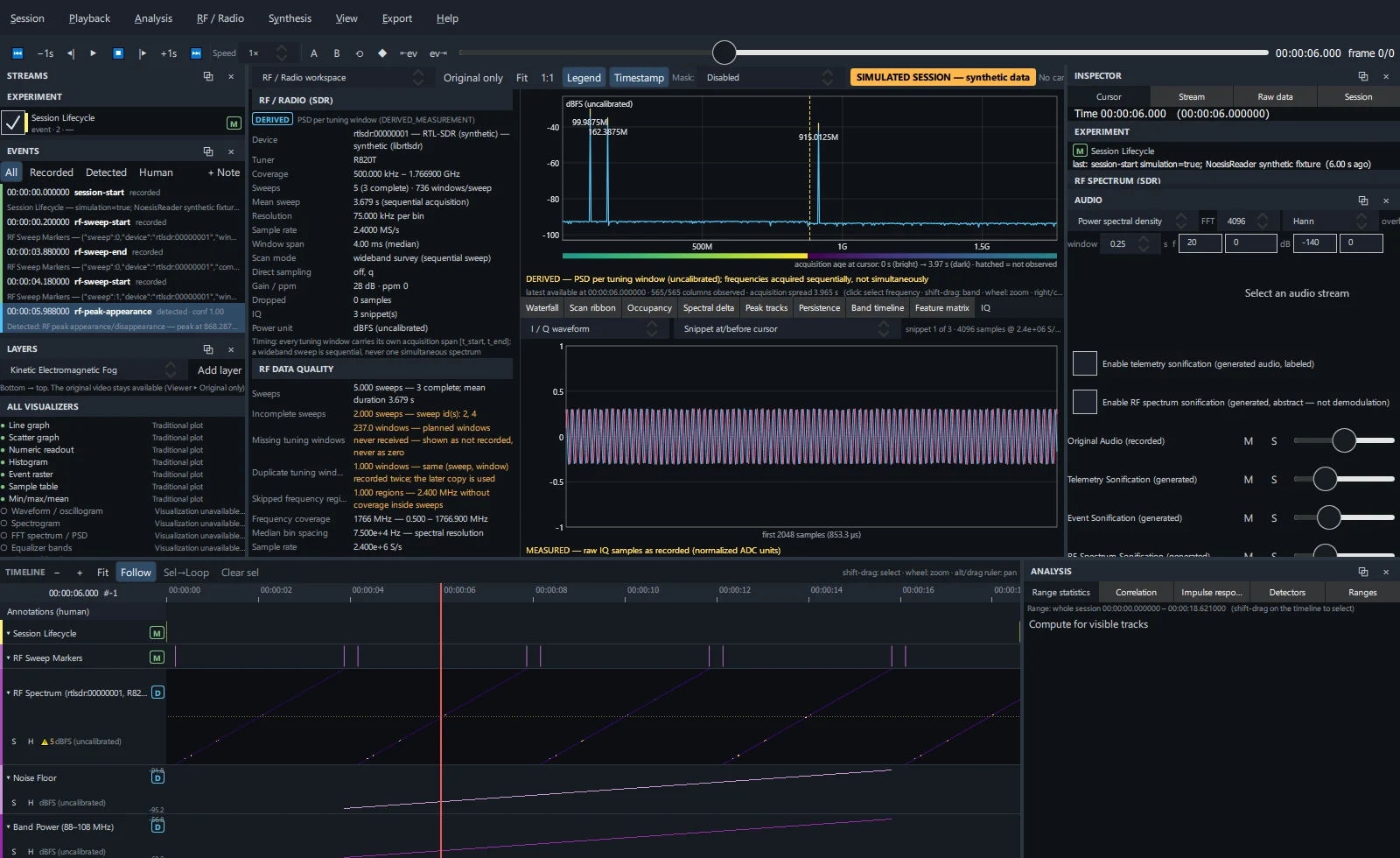
Choose a display — I / Q waveform, IQ constellation, Magnitude, Phase, Instantaneous frequency, Local PSD, Local spectrogram — and a snippet (or Snippet at/before cursor). Instantaneous frequency is withheld for snippets with sample drops.
RF detectors and sonification#
- RF / Radio → Run RF peak / band detectors runs RF peak appearance / disappearance and RF band power transition; results appear as detected events.
- RF / Radio → RF spectrum sonification plays the spectrum around the selected frequency on its own bus. See Sonification.
- The RF readout HUD layer shows RF values over the video. See Layer types.
RF exports#
RF spectrum at the cursor or selected sweep, RF bins of the selected time range, waterfall image (PNG + JSON), occupancy table, peak tracks and raw IQ snippets. See Export formats and the RF CLI commands.