
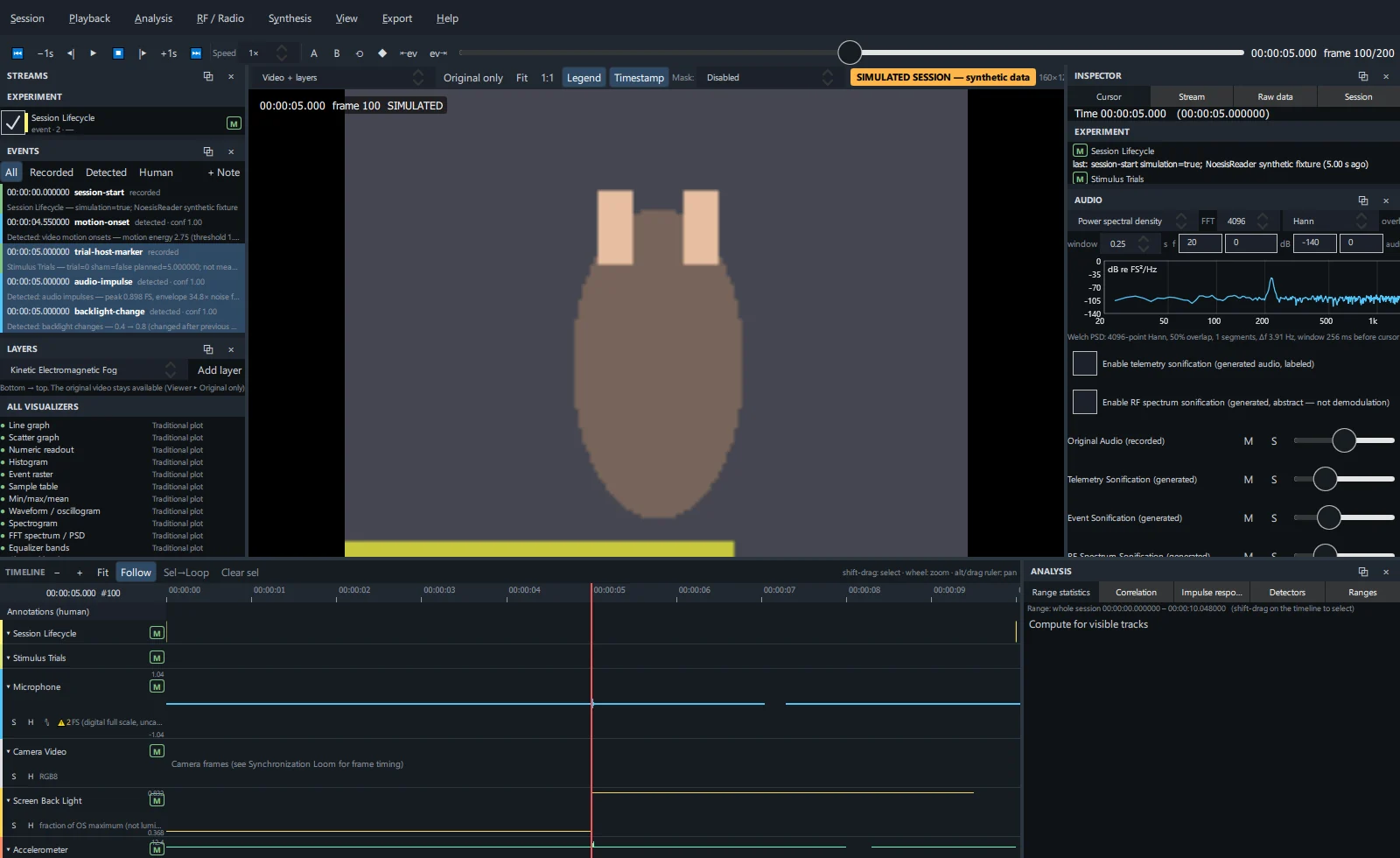
Layout#
| Area | Contents |
|---|---|
| Menu bar | Session, Playback, Analysis, RF / Radio, Synthesis, View, Export, Help. |
| Transport bar | Play controls, speed, A/B loop, markers, event jumps, scrub slider and timecode. See Playback. |
| Left column | Streams, Events and Layers panels. |
| Centre | The viewer: video with layers, an analytical view, the RF / Radio or Synthesis workspace, or a composition. |
| Right column | Inspector and Audio (spectrum + mixer). |
| Bottom | The master timeline and the Analysis panel. |
Menus#
Session
Open Session… (Ctrl+O), Open Recent, Save Project (Ctrl+S), Close Session, Quit (Ctrl+Q).
Playback
Play / Pause, Next frame, Previous frame, Loop selection, Annotate at cursor… (Ctrl+M).
Analysis
Opens the Analysis panel (range statistics, correlation, impulse response), switches the viewer to Synchronization Loom, Sensor Constellation, Cross-Modal Resonance, Temporal Shockwave, Stimulus-Response Lens or Signal Fingerprint, and Clear cache (caches are regenerated from the recording).
RF / Radio
RF / Radio workspace (Ctrl+R), Full frequency span, Add selected band as timeline track, Previous sweep / Next sweep, Run RF peak / band detectors and the RF spectrum sonification toggle.
Synthesis
Synthesis workspace (Ctrl+Y) and Composition (multi-view).
View
Show or hide each panel (Streams, Events, Layers, Inspector, Audio, Analysis); switch the viewer (Video + layers, RF / Radio, Synthesis, Composition, Fullscreen visualization); Toggle fullscreen window (Ctrl+Shift+F); Dark theme (untick for the light theme); Reset layout.
Export and Help
Export… (Ctrl+E) opens the Export dialog. Help → About NoesisReader shows the version.
Dockable panels#
Every panel has two buttons in its header:
- ⧉ — undock the panel into its own window. Close that window to dock it again.
- × — hide the panel. Restore it from the View menu.
Drag the split handles (they light up on hover) to resize columns and the timeline. Panel sizes and visibility are remembered between launches; View → Reset layout restores the defaults.
Notifications and loading#
- While a session loads, an overlay shows the stage and progress with a Cancel button.
- Short confirmations (for example “annotation added”, export results) appear as toasts at the bottom of the window.
- Simulated sessions show a persistent SIMULATED SESSION — synthetic data badge in the viewer toolbar and in the burned-in timestamp.
Provenance colours#
Every stream, layer and value carries a class badge: M MEASURED D DERIVED I INFERRED A ABSTRACT MAPPING. See Provenance & data quality.