
Synchronization Loom#
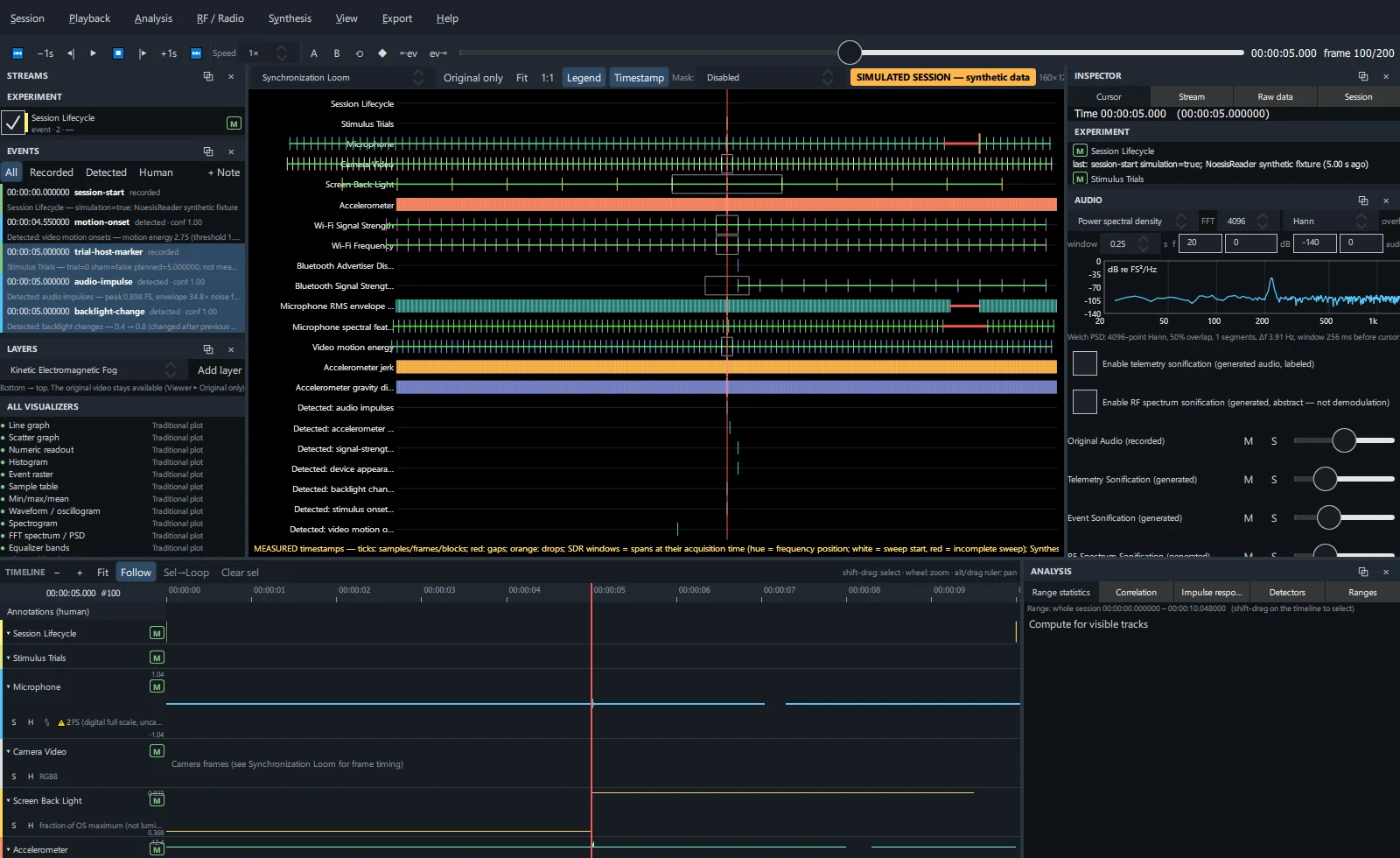
Each stream is a horizontal thread spanning ±3 s around the cursor. Every sample, frame or block is a tick; gaps break the thread; sequence drops and timing jitter are coloured. RF tuning windows are drawn as spans at their acquisition time, and Synthesis epochs as their windows. Use it to verify synchronization and spot dropped data before analysis.
Sensor Constellation#
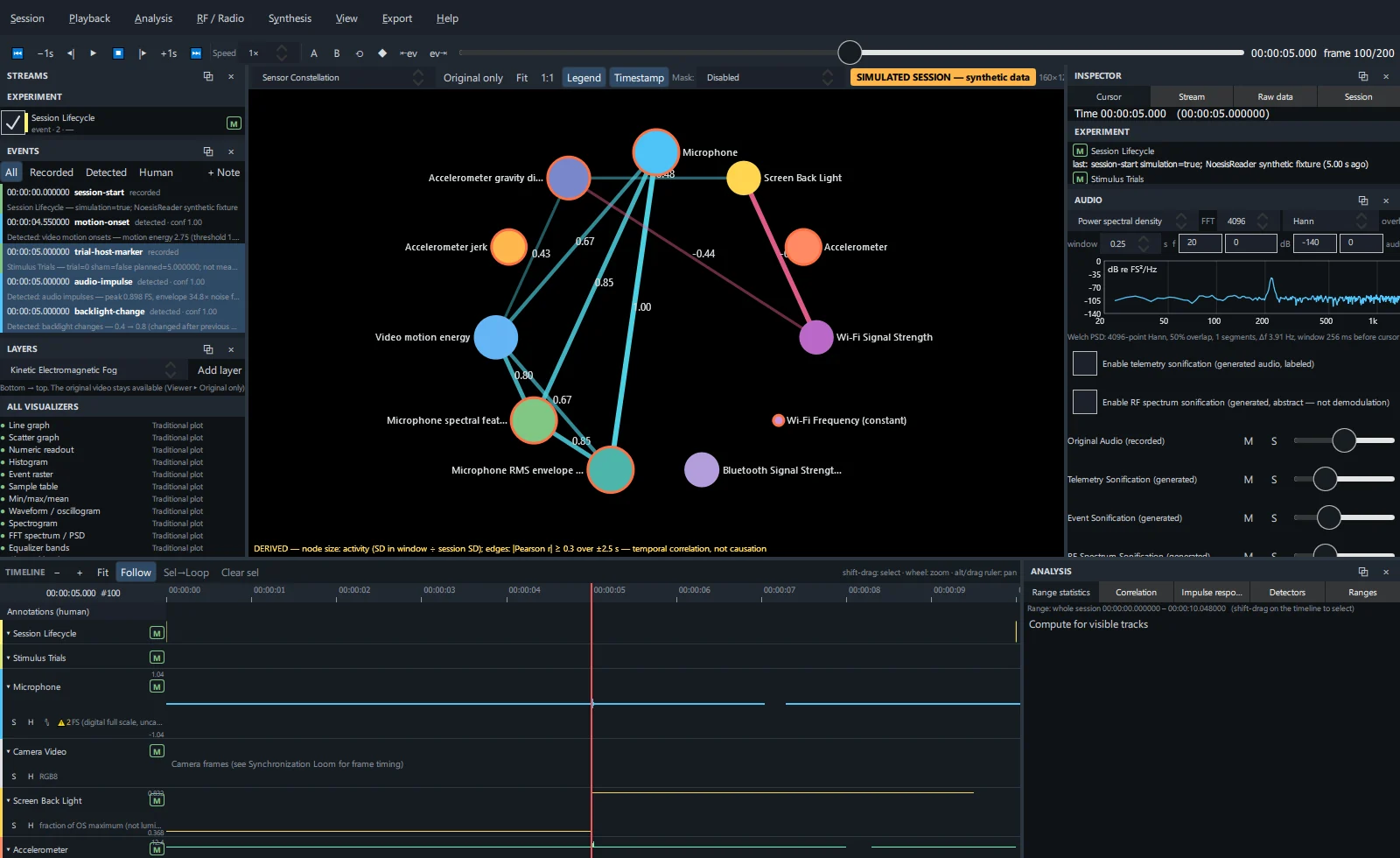
One node per numeric stream. Node size is activity (normalized SD over a 5 s window), the ring shows data-quality warnings and edge weight is |Pearson r| over the window. RF band series and Synthesis features join as nodes when they are shown as tracks. Node positions are a layout, not locations.
Cross-Modal Resonance#
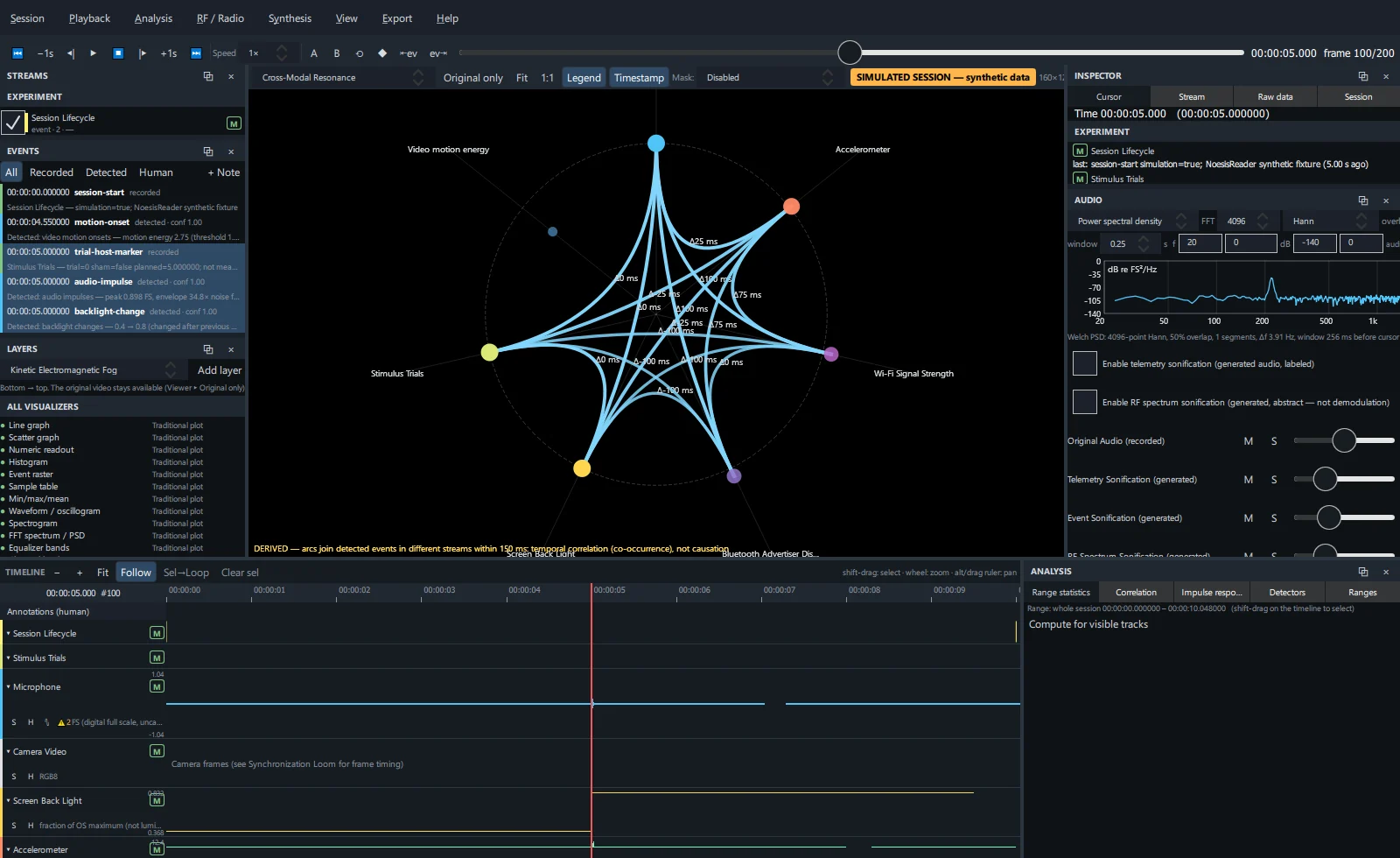
Streams are arranged around the cursor. Detected or recorded events in different streams that fall within a 150 ms coincidence window are linked by arcs, including RF activity events (peak appearance and band transitions). Run detectors first (Analysis panel → Detectors) to populate it.
Temporal Shockwave#
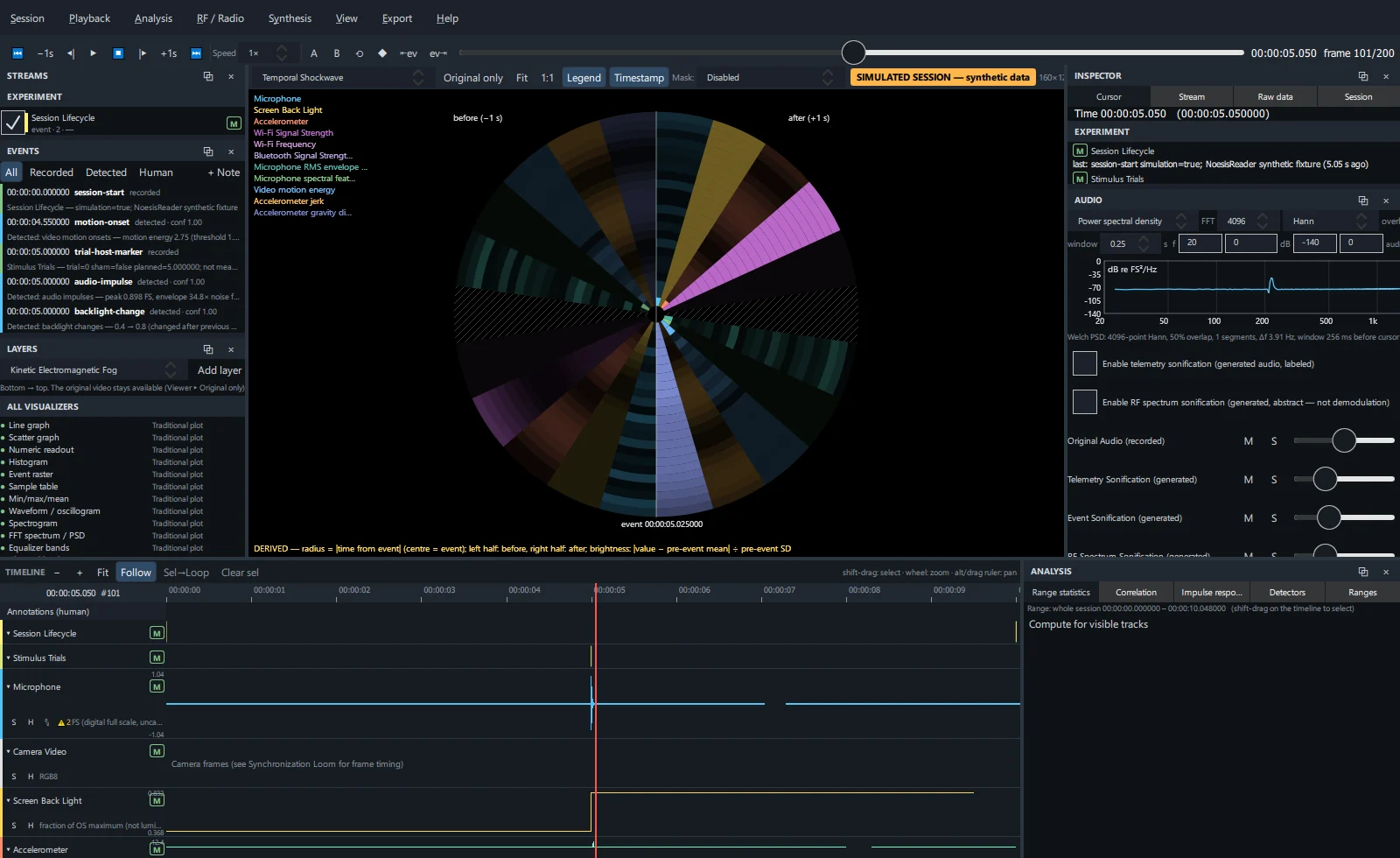
Centred on the detected event nearest the cursor (run detectors first), each stream gets a sector. Radius is time from the event — the left half is before, the right half after (1 s each by default) — and brightness is |value − pre-event mean| ÷ pre-event SD. Bright rings mark streams that responded.
Stimulus-Response Lens#
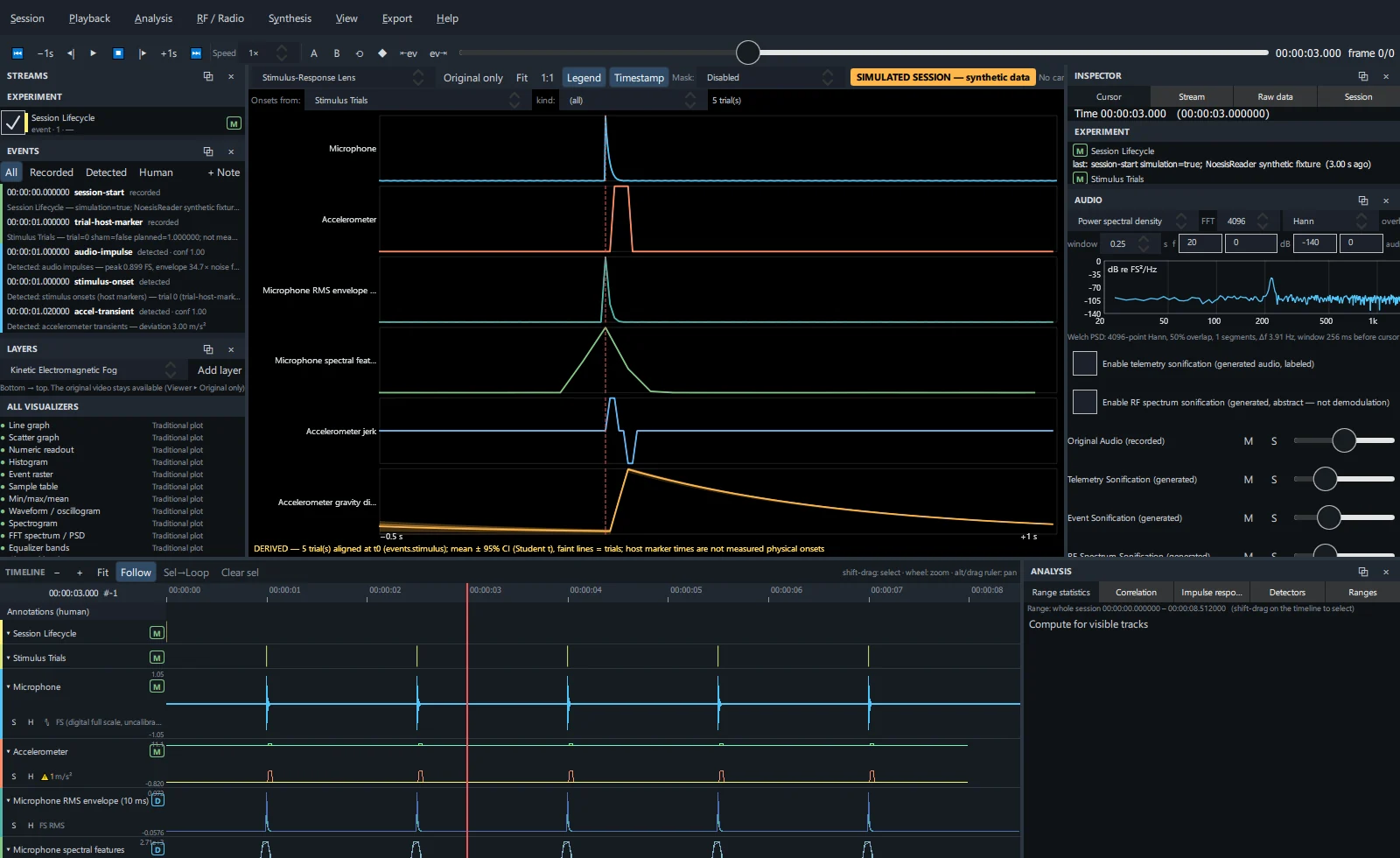
Choose Onsets from: an event stream (default Stimulus Trials) and optionally a kind (trial-host-marker, audio-impulse, accel-transient, stimulus-onset, haptic-command).
Every numeric stream is cut into windows around each onset (0.5 s before, 1 s after), aligned and averaged with a 95 % confidence band. The trial count is shown in the toolbar.
Signal Fingerprint#
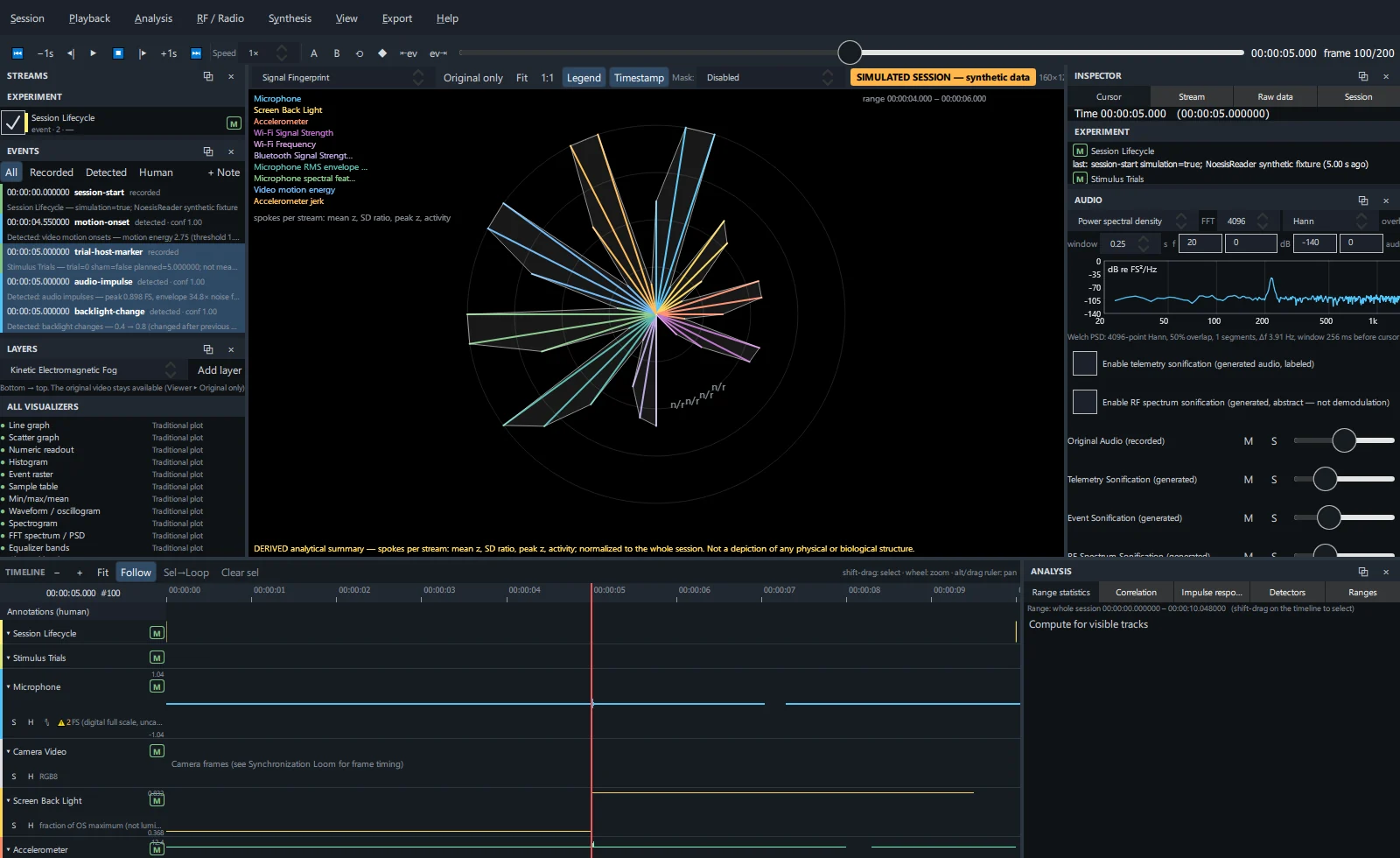
A radial glyph of normalized features (mean, SD, peak, activity) for each numeric stream over the selected range — or the whole session when nothing is selected. Compare fingerprints of two ranges by changing the selection.
Spectrum / PSD and Histogram#
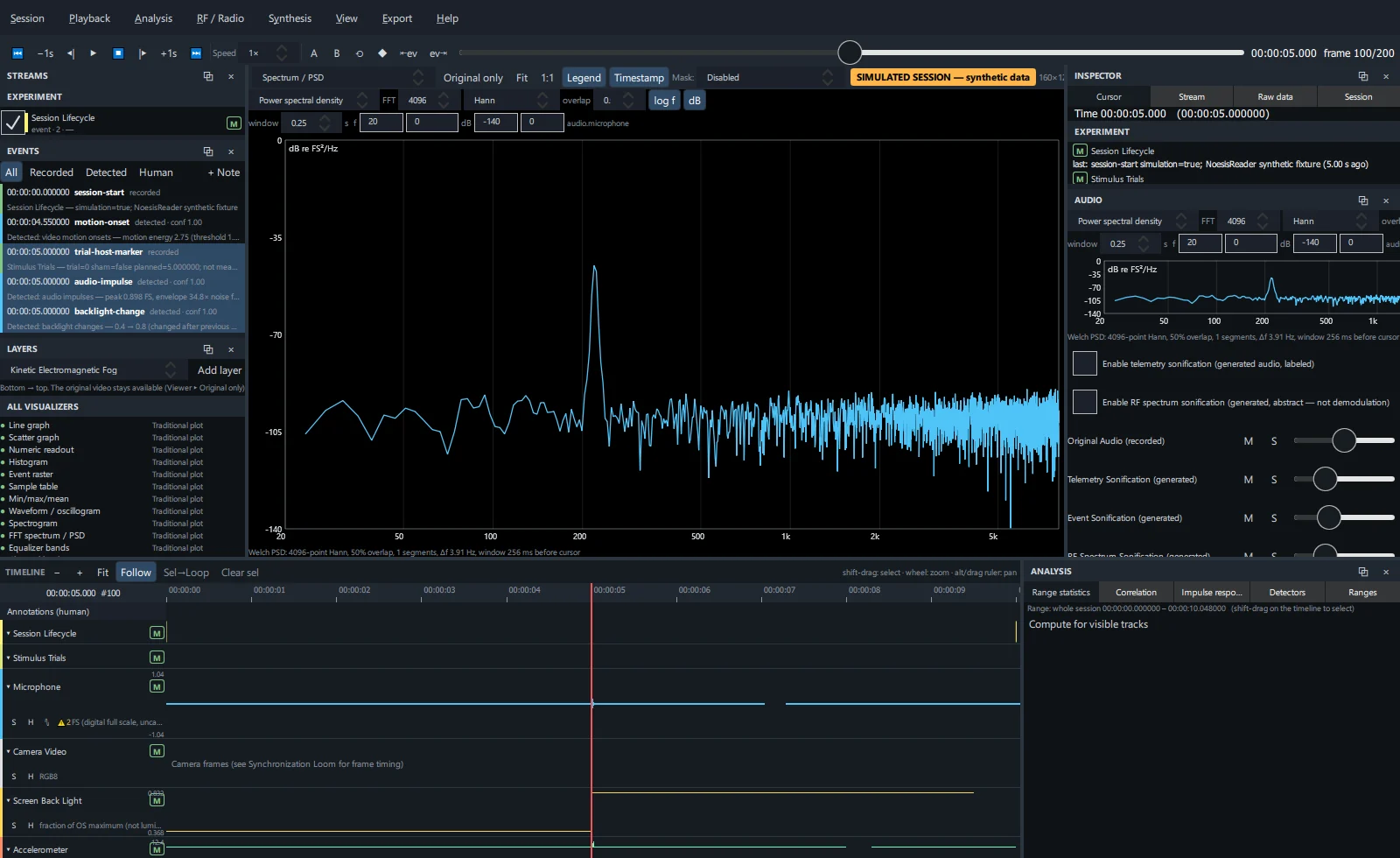
- Spectrum / PSD puts the full spectrum panel in the viewer for a large display.
- Histogram shows the value distribution of the selected stream over the selection (or whole session).
Fullscreen visualization#
Shows the layers whose display mode is Fullscreen on a neutral stage without the video. Combine it with View → Toggle fullscreen window (Ctrl+Shift+F) for presentations.